Two Factor Authentication
Two Factor Authentication for TastyIgniter
- Downloads
- 0
- Latest version
- v1.3.0
- Supported version
- v4.x
Two Factor Authentication
Package: avisaas/ti-ext-twofactor
Compatibility/Notes: Free, no licence key — Compatible with TastyIgniter 4.x on PHP 8.3+.
Features
Three Authentication Methods
- Email OTP — A 6-digit one-time code is sent to the admin's email address on every login.
- Phone / SMS OTP — A 6-digit code is sent via SMS (Twilio or Vonage/Nexmo).
- Google Authenticator (TOTP) — Time-based codes using any TOTP app (Google Authenticator, Authy, 1Password, etc.). No email or SMS dependency.
Seamless Login UX
The 2FA challenge appears on the same login page — no separate challenge page. After the admin submits their
username/password, the login form is replaced with a 6-digit code field inline. The user is kept on /admin/login
throughout.
- Cancel button clears the pending session and returns to the normal login form
- Resend button re-sends a fresh code (email/SMS types only)
- Google Authenticator codes work immediately with no resend needed
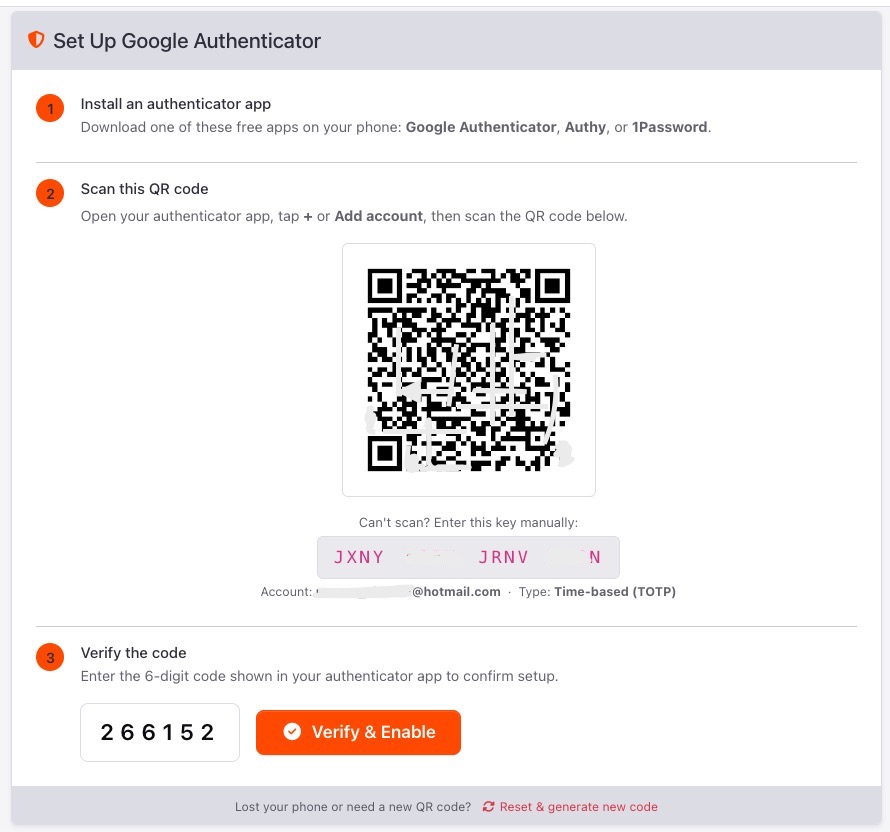
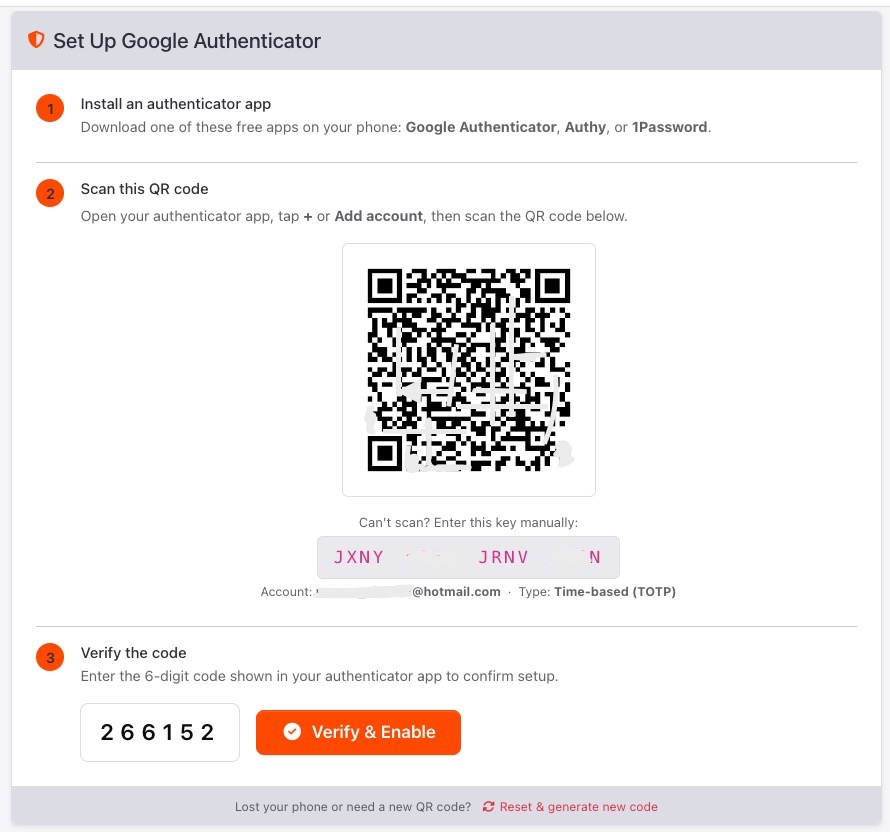
Google Authenticator Setup Wizard
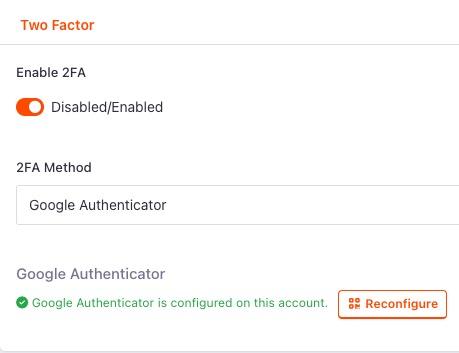
Admins set up Google Authenticator from their own profile page (Admin Users → Edit Profile → Two Factor tab):
- Click Setup Now → redirected to the setup wizard
- Requirements card — shows whether
pragmarx/google2fa-laravelis installed with a one-click Install package button that runscomposer requirein the background - Scan QR code — a QR code is displayed for scanning with any authenticator app
- Manual key — the secret is shown in groups of 4 characters for manual entry
- Verify — enter the 6-digit code to confirm and enable 2FA on the account
- Regenerate — a reset link in the card footer lets the admin invalidate the old QR code and generate a new one
One-Click Package Install
pragmarx/google2fa-laravel is installed with the extension. If it is ever missing, the setup page shows a live install
button that runs composer require pragmarx/google2fa-laravel via PHP exec(). Output is shown in a scrollable
terminal-style panel. The page reloads automatically after a successful install.
It works on shared hosting where there is no HOME environment variable (it uses HOME=/tmp COMPOSER_HOME=/tmp).
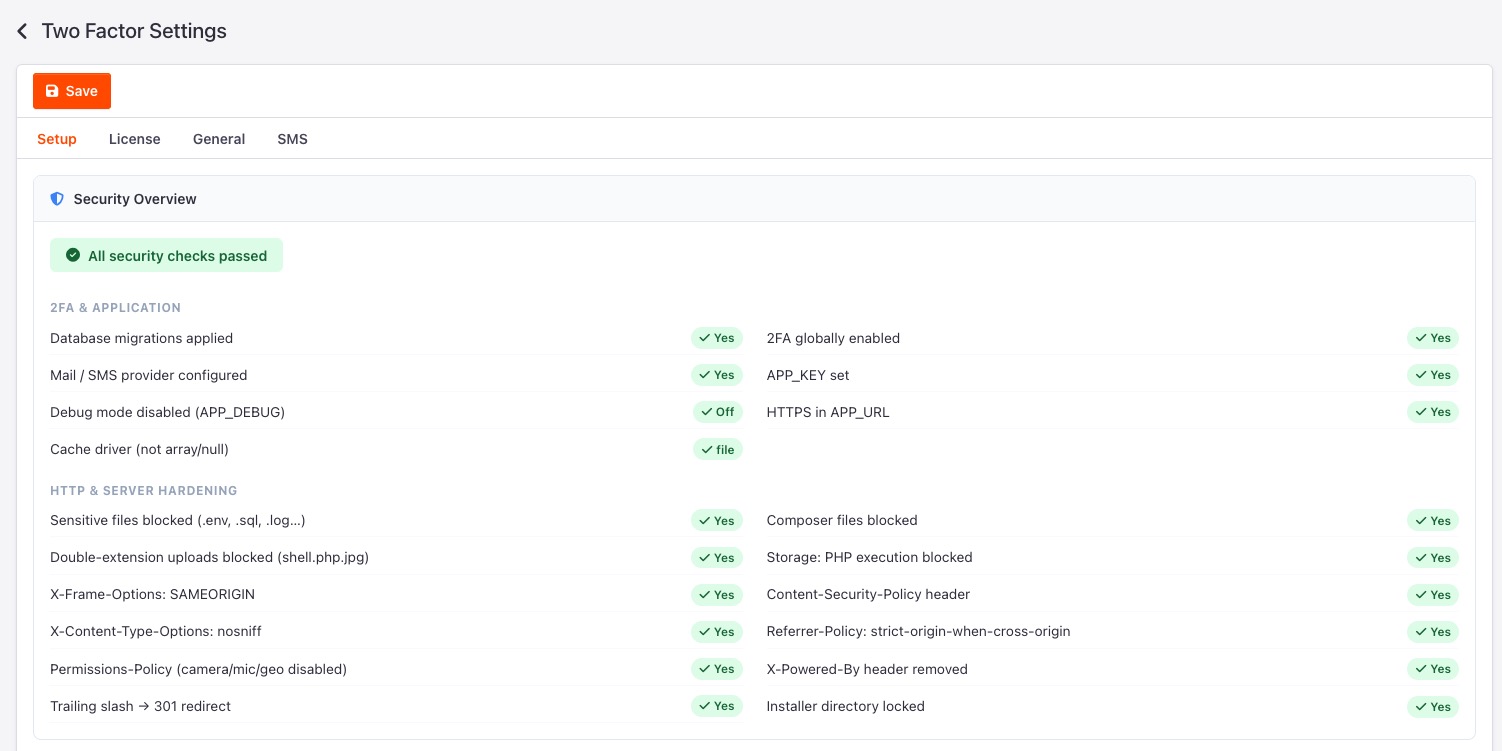
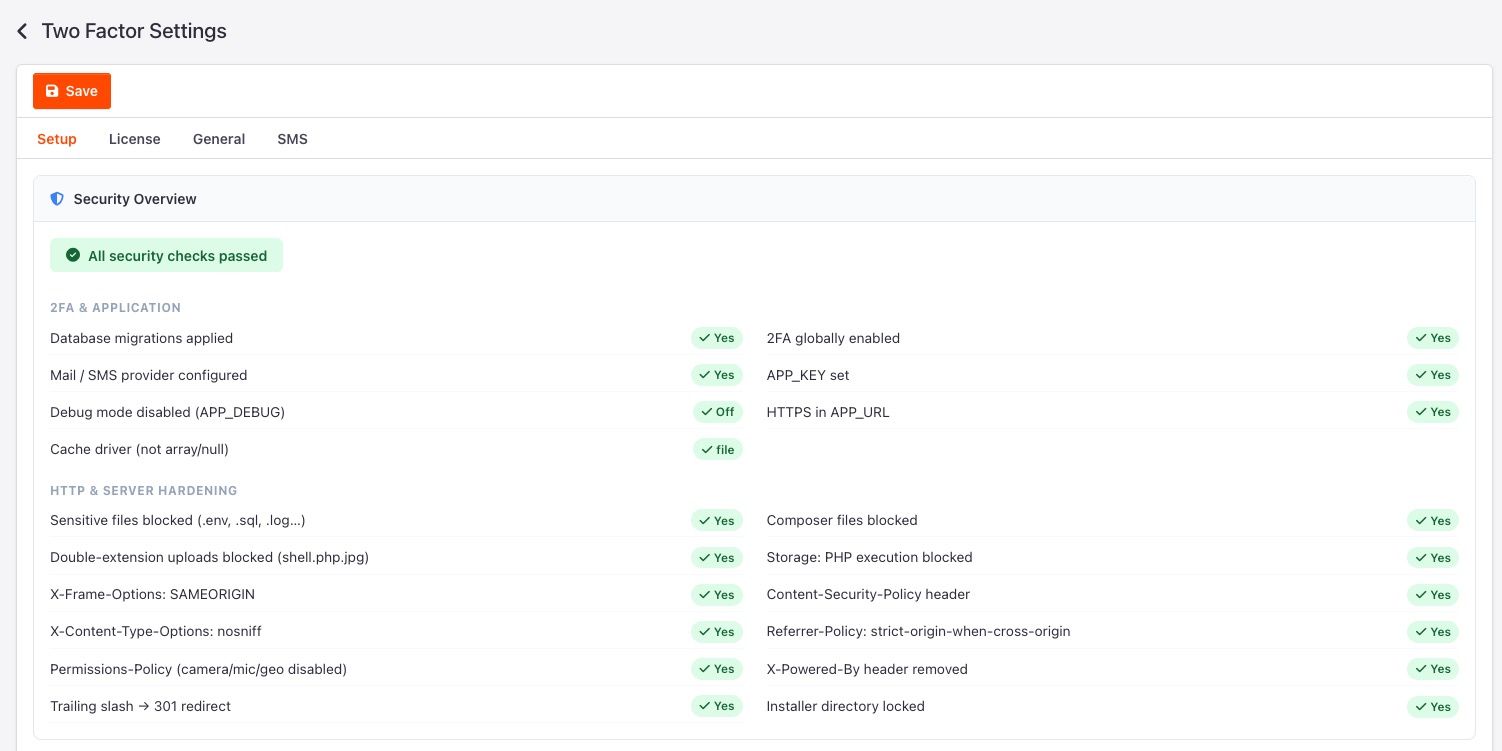
Security Overview Panel (Setup Tab)
The Settings → Setup tab runs a live security checklist on your server and application — no manual inspection needed.
Application Security
| Check | What it verifies |
|---|---|
| Database migrations applied | All 2FA columns exist in the database |
| 2FA globally enabled | The enable_2fa setting is on |
| Mail / SMS provider configured | A delivery method is set |
| APP_KEY set | Laravel encryption key is present |
| Debug mode disabled | APP_DEBUG=false in production |
| HTTPS in APP_URL | APP_URL starts with https:// |
| Cache driver | Not using array or null driver |
HTTP & Server Hardening
| Check | What it verifies |
|---|---|
| Sensitive files blocked | .env, .sql, .log requests are denied |
| Composer files blocked | composer.json, composer.lock are not publicly accessible |
| Double-extension uploads blocked | shell.php.jpg style uploads rejected |
| Storage: PHP execution blocked | PHP cannot execute inside the storage directory |
| X-Frame-Options: SAMEORIGIN | Clickjacking protection header present |
| Content-Security-Policy header | CSP header present |
| X-Content-Type-Options: nosniff | MIME sniffing protection |
| Referrer-Policy | strict-origin-when-cross-origin set |
| Permissions-Policy | Camera, microphone, geolocation disabled |
| X-Powered-By header removed | PHP version not leaked in response headers |
| Trailing slash redirect | Canonical URL redirect (301) active |
| Installer directory locked | Web installer is not publicly accessible |
One-click Apply Hardening button writes the missing rules to .htaccess automatically.
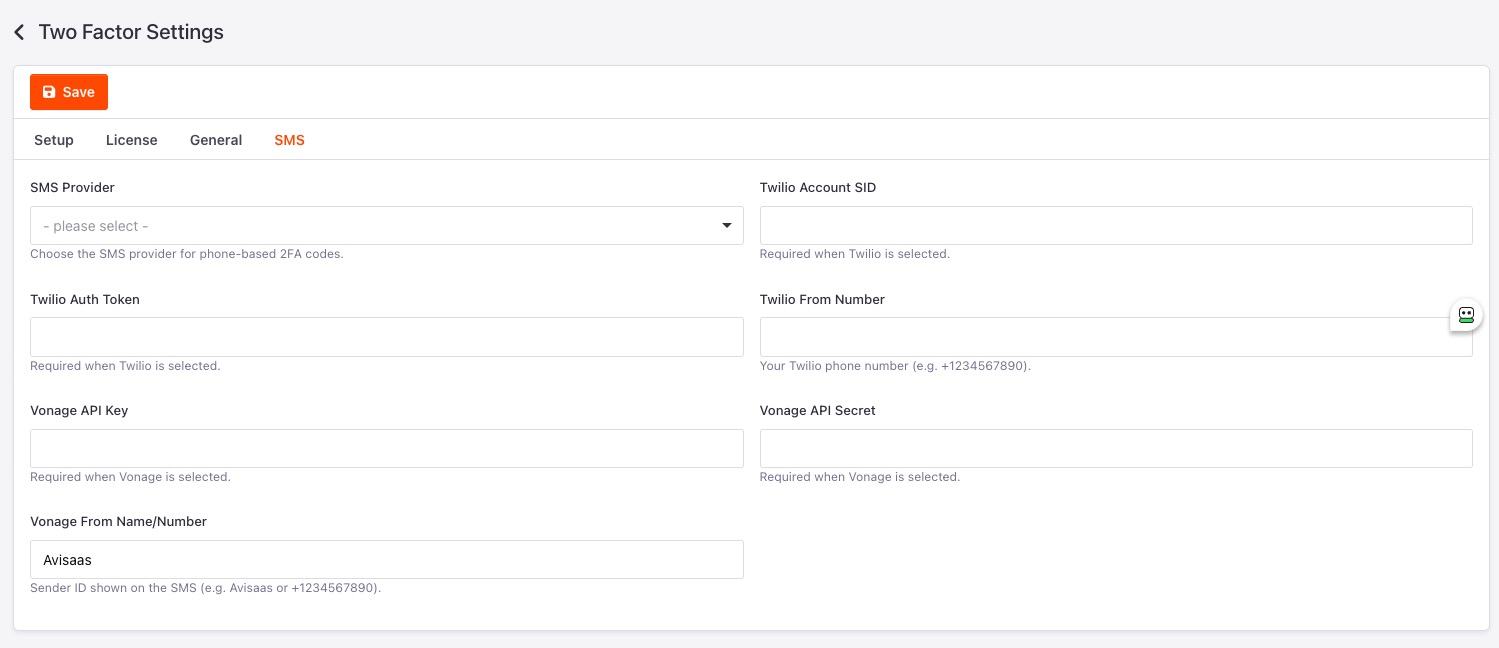
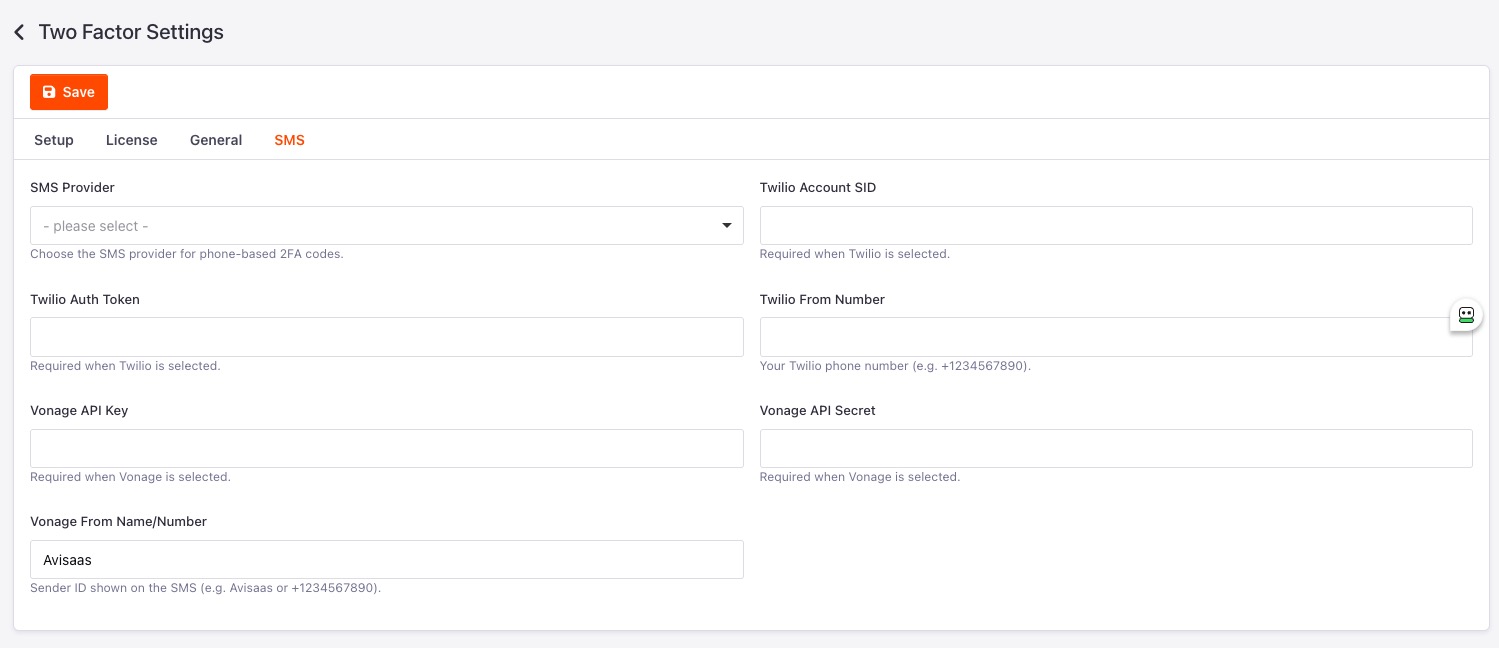
SMS Provider Support
Configure SMS delivery under Settings → SMS:
| Provider | Credentials Required |
|---|---|
| Twilio | Account SID, Auth Token, From Number |
| Vonage (Nexmo) | API Key, API Secret, From Name/Number |
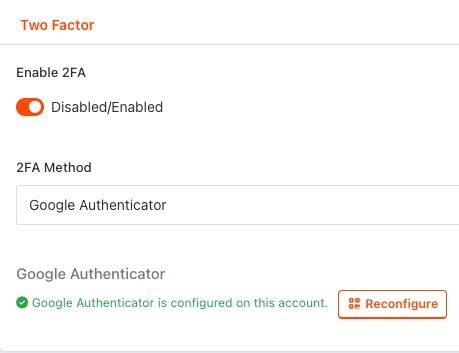
Per-User Status in Admin Panel
The Admin Users → Edit → Two Factor tab shows each user's current 2FA status:
- Method configured (None / Email / Phone / Google Authenticator)
- Whether 2FA is currently enabled on the account
- A direct Setup Now or Reconfigure button (own profile only; superadmins see status for all users)
Screenshots
Public screenshots
Public versions are available at: https://github.com/avisaas/extension-screenshots/tree/main/twofactor
Requirements
- TastyIgniter 4.x (Laravel 12)
- PHP 8.3 or higher
pragmarx/google2fa-laravel(installed with the extension)
Installation
Two Factor is free and needs no licence key. Run these two commands in your site's root folder (the one with artisan
and composer.json):
composer require avisaas/ti-ext-twofactor
php artisan igniter:up
composer require also installs the packages Two Factor needs. A Composer-installed extension is switched on unless
someone has switched it off, so there is nothing to enable under Extensions.
php artisan igniter:up runs the extension's migration, which adds the two-factor columns to the admin users and
customers tables.
Configuration
1. Enable 2FA enforcement
Go to the General tab and toggle Enable Two Factor Authentication on.
2. (Optional) Configure SMS
Go to the SMS tab, select your provider (Twilio or Vonage), enter credentials, and save.
3. Set up Google Authenticator per user
Each admin goes to Admin Users → Edit (own profile) → Two Factor tab → Setup Now. They scan the QR code with their authenticator app and enter the 6-digit code to confirm.
License
Free to install and use on any website. Copying, reusing, modifying, reselling or redistributing any part of it needs written permission from avisaas.com — see LICENSE_PROPRIETARY.md.
More from this author
Other extensions and themes by AVi SaaS.